Before Getting Started

To prevent having to reboot the server later in this guide, follow the instructions below in this order.

If this is not an issue or the server is brand new, the steps in this guide can be followed in a different order.

The issue is having enabled PHP CGI on Windows IIS before setting up Imagick, the web server will not find the Imagick extension until you reboot the server completely.

Getting Started

In this guide, you will learn how to setup RDM Forms in a clean Windows server with the Windows Internet Information Services (IIS) web server.

Requirements

In a clean Windows server, we will install the following programs for RDM Forms.

  • Windows Internet Information Services (IIS)
  • PHP
  • Imagick extension
  • MySQL

PHP

Any modern version of PHP works with RDM Forms. However, the Imagick extension might not be available for the latest version.

So, in this guide we will install PHP 8.4 to make sure everything is compatible. I will do my best to note how to determine which versions are compatible with each other and why.

Download

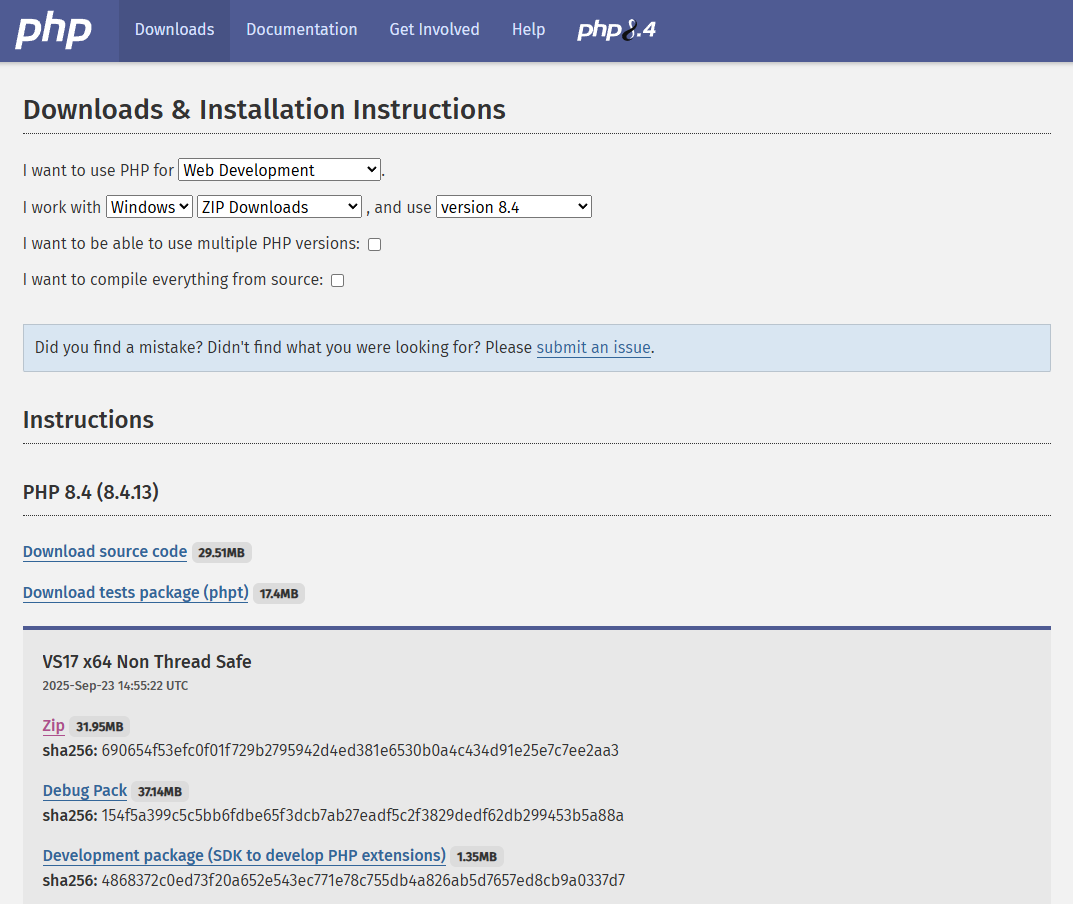
To begin, go to the PHP Downloads page. Here you can download PHP 8.4. Look for version VS17 x64 Non Thread Safe and click on Zip to download the compressed files.

To understand why we are using the Non-Thread Safe version of PHP in a multi-threaded web server environment, first we need to understand how we are using PHP. Feel free to skip this explanation.

The Thread Safe version of PHP is designed to work in multi-threaded web server environments as a module. Thread-safety is achieved by providing local storage copies for each thread, preventing data collisions and race conditions when multiple threads access shared resources. It is generally recommended when PHP is loaded as a module within a multi-threaded web server.

The Non-Thread Safe version is optimized for environments where PHP is executed as a separate process for each request, such as when using FastCGI (which we are using in this case) or as a CGI binary. In these scenarios, each request is handled by a distinct PHP process, eliminating the need for thread-safety mechanisms and often resulting in better performance due to reduced overhead.

Installation

Once downloaded, upload the zip file to the web server and extract the files in an accessible place. I prefer to install PHP in C:\php for a short path.

To enable a production ready environment for PHP, we need php.ini available to make changes to in the PHP folder. Open the folder you just installed PHP in and copy the php.ini-production file. Rename the copy as php.ini and open it in a text editor. I suggest installing Notepad++ for this, but Windows Notepad works just fine.

We will make some changes to the php.ini file. First, search for max_input_vars. It might be commented out using a semicolon (;), uncomment it and change its value to 10000.

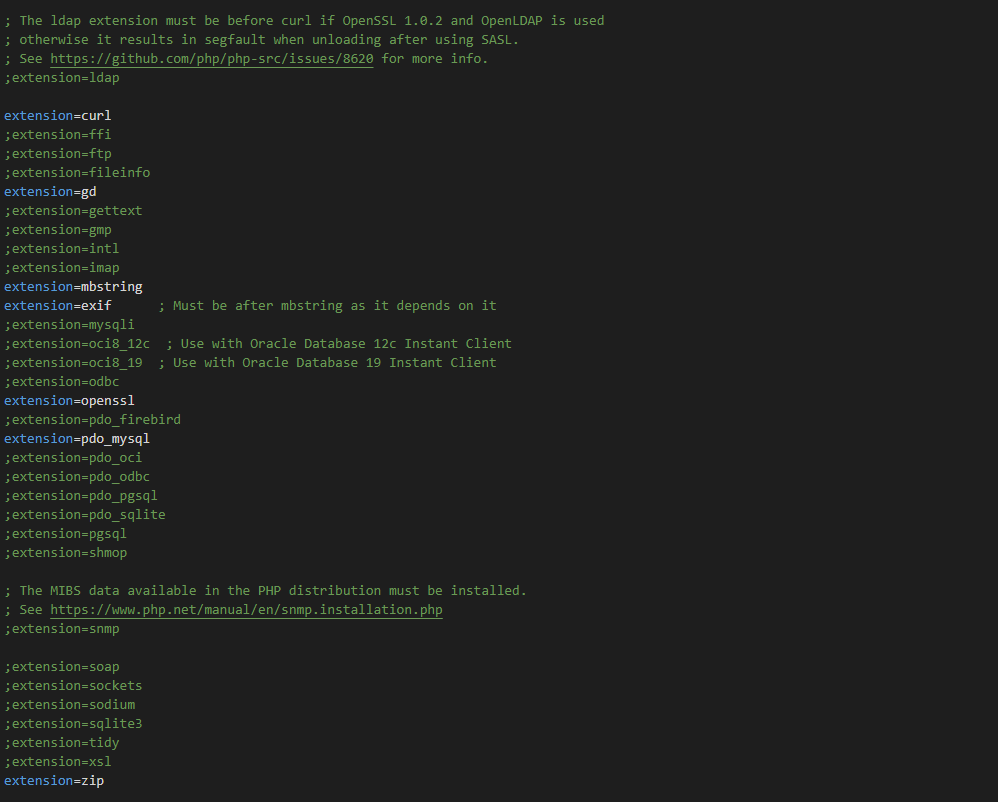
After that, search for Dynamic Extensions. You will notice a bunch of extension=abcdef entries. The semicolon (;) means that extension is disabled.

We will enable some extensions required by RDM Forms, as well as some quality-of-life extensions for PHP.

Uncomment the following extensions: curl, gd, mbstring, exif, openssl, pdo_mysql, and zip.

The explanation for why those extensions are enabled is available in the Setup screen inside RDM Forms. We will have access to this screen once the web server is running.

The extensions cURL and OpenSSL are required by Composer and are nice to have.

Adding PHP to the Path environment variable

This following step is optional, but it helps run PHP through Windows Terminal (Command Line or Powershell) so it is highly recommended.

In the Start menu, search for environment variables and open Edit the system environment variables.

Then click the Environment Variables… button in the System Properties window.

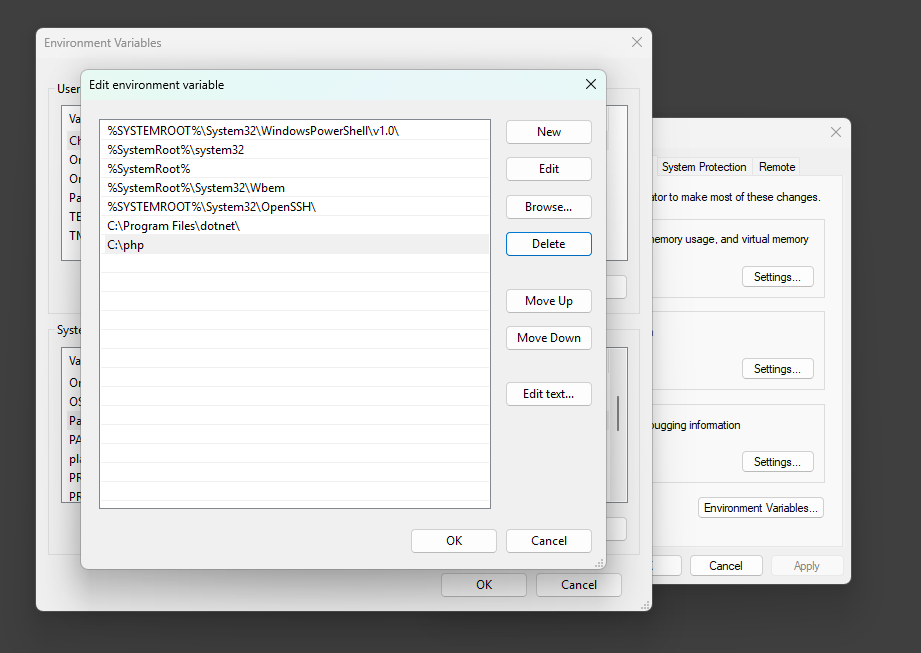
Under System variables, look for the Path variable, then click the Edit… button.

On the new screen, click New and type C:\php (or the path you chose to install PHP on the web server), then click OK to close this window.

Click the OK button two more times and you are all set.

Open the Windows Terminal, PowerShell or the Command Line and type the following to test if PHP is running correctly in the system

php -v

Imagick

For RDM Forms to run in Windows, it has to be able to generate PDFs and process images for barcodes. We use two libraries for this purpose: GD and Imagick (based on ImageMagick).

GD is likely to be available (but not enabled by default) in your PHP installation. However, Imagick is not.

In this section, I will show you how to properly install the Imagick extension to run in Windows IIS.

As noted at the beginning of this guide, setting up Windows IIS before setting up this extension might lead to IIS not loading the extension correctly until a full server reboot is performed. You will notice this issue if PHP running in CLI (for example, typing php -m in the terminal console) loads the extension correctly but RDM Forms shows it as not loaded.

Download

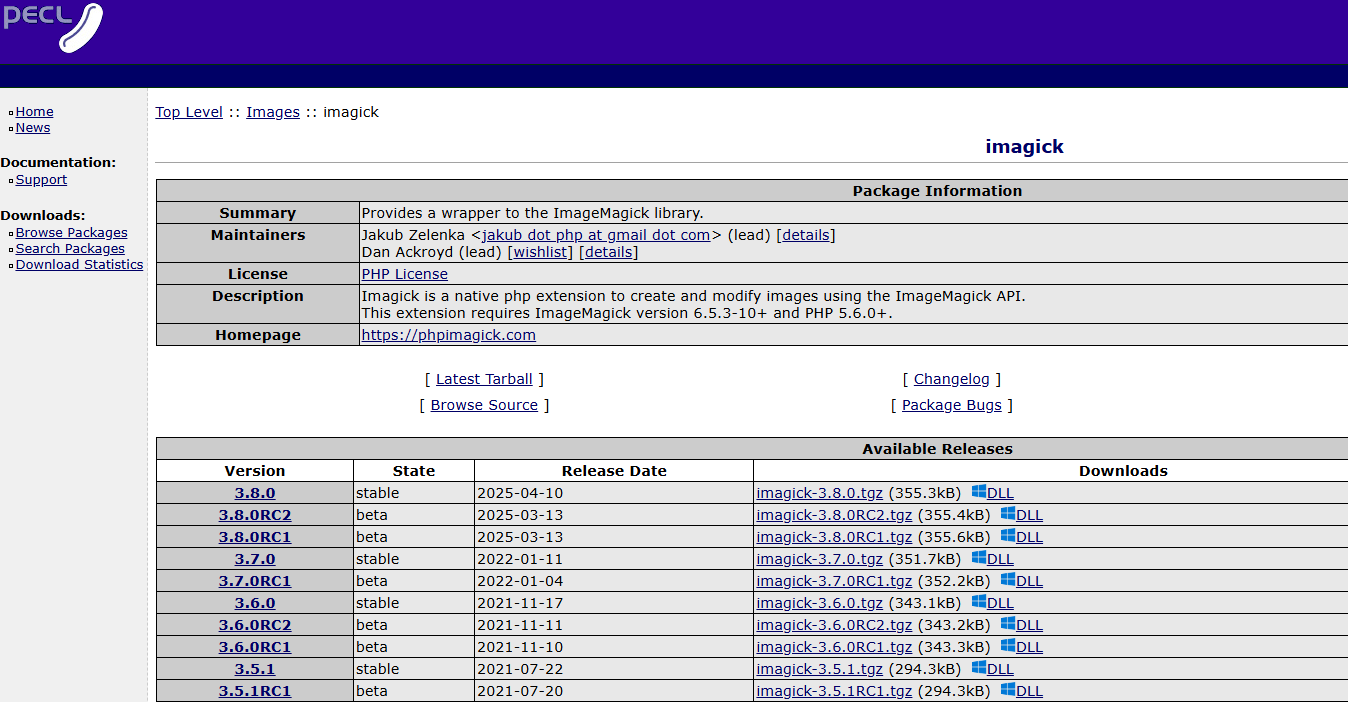
The download is available at the Imagick PECL website. Feel free to download the latest version clicking on the Windows icon and DLL text besides the version you want to download.

This will take you to another page where you can select your PHP version. Since we know we are using PHP 8.4 Non-Thread Safe (NTS), download the version 8.4 Non Thread Safe (NTS) x64.

This will download a .zip file.

Installation

Once downloaded, upload the zip file to the web server and extract the files in an accessible place. I recommend extracting the files into the C:\php\extras\imagick folder. If you choose another folder, keep in mind its location.

Open the extracted imagick folder (in my case C:\php\extras\imagick) and move the file called php_imagick.dll (enable extensions in the file browser if necessary) into the ext folder in the PHP folder (in my case, it would be C:\php\ext).

Enabling the extension in php.ini

To allow PHP to load the extension, you have to add it to php.ini found in your PHP directory. It will not be there by default.

First search for Dynamic Extensions. You will notice a bunch of extension=abcdef entries. The semicolon (;) means that extension is disabled.

Somewhere in that list of extensions, add extension=imagick. I like to add it close to the end or next to gd.

Finally, save and close php.ini.

Adding Imagick to the Path environment variable

Unlike the PHP step which is optional, this step is not optional. In order for the Imagick extension to work, Windows has to find its location through the Path environment variable.

In the Start menu, search for environment variables and open Edit the system environment variables.

Then click the Environment Variables… button in the System Properties window.

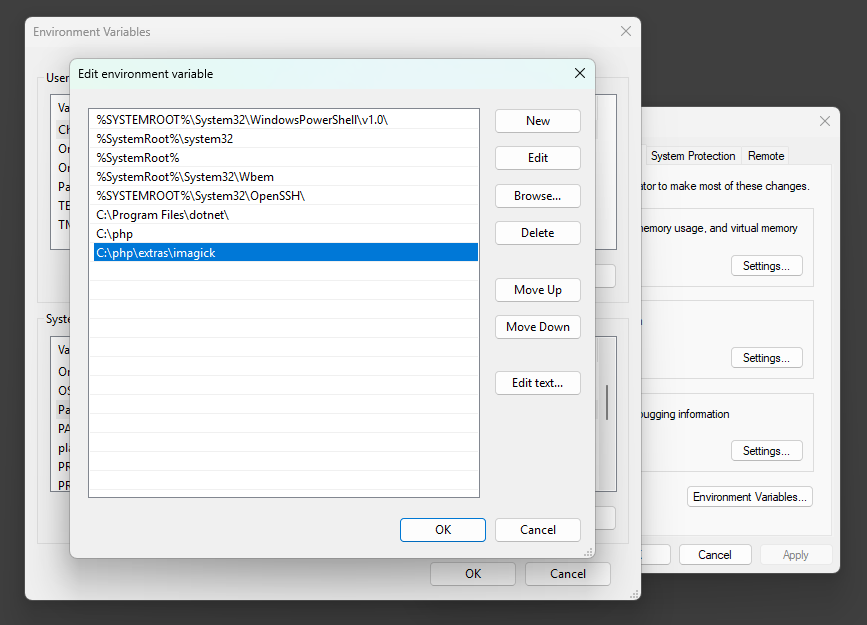
Under System variables, look for the Path variable, then click the Edit… button.

On the new screen, click New and type C:\php\extras\imagick (or the path you chose to extract the Imagick extension on the web server), then click OK to close this window.

Click the OK button two more times and you are all set.
Testing installation

If you enabled PHP to run in the terminal console, we can test if the installation worked correctly.

First, create a file called imagick.php file anywhere accessible (such as your Desktop) and paste this PHP code:

<?php
error_reporting(E_ALL);
ini_set(‘display_errors’,’1′);
$image = new Imagick();
$image->newImage(1, 1, new ImagickPixel(‘#ffffff’));
$image->setImageFormat(‘png’);
$pngData = $image->getImagesBlob();
echo strpos($pngData, “\x89PNG\r\n\x1a\n”) === 0 ? ‘Ok’ : ‘Failed’;

After that, open the Windows Terminal, PowerShell or the Command Line, navigate to the PHP file and type the following. You should see Ok displayed on the screen.

php imagick.php

If you see errors, double check everything is set up correctly. Here are two examples are how to debug them:

If you see this, it means you did not add the correct extension path to the environment variables. It is also important to open a new command prompt after adding the path to the environment variables.

PHP Warning: PHP Startup: Unable to load dynamic library ‘imagick’ (tried: C:\php\ext\imagick (The specified module could not be found), C:\php\ext\php_imagick.dll (The specified module could not be found)) in Unknown on line 0

Warning: PHP Startup: Unable to load dynamic library ‘imagick’ (tried: C:\php\ext\imagick (The specified module could not be found), C:\php\ext\php_imagick.dll (The specified module could not be found)) in Unknown on line 0

If you see this, it means the extension is not loaded. Make sure the php_imagick.dll is in the ext folder in your PHP folder, it is added to php.ini, and the environment variable has the correct path to your Imagick extension.

PHP Fatal error: Uncaught Error: Class “Imagick” not found in imagick.php:4
Stack trace:
#0 {main}
thrown in imagick.php on line 4

Fatal error: Uncaught Error: Class “Imagick” not found in imagick.php:4
Stack trace:
#0 {main}
thrown in imagick.php on line 4

MySQL

Installation

Download your favorite flavor of MySQL 8 from the MySQL Downloads page.

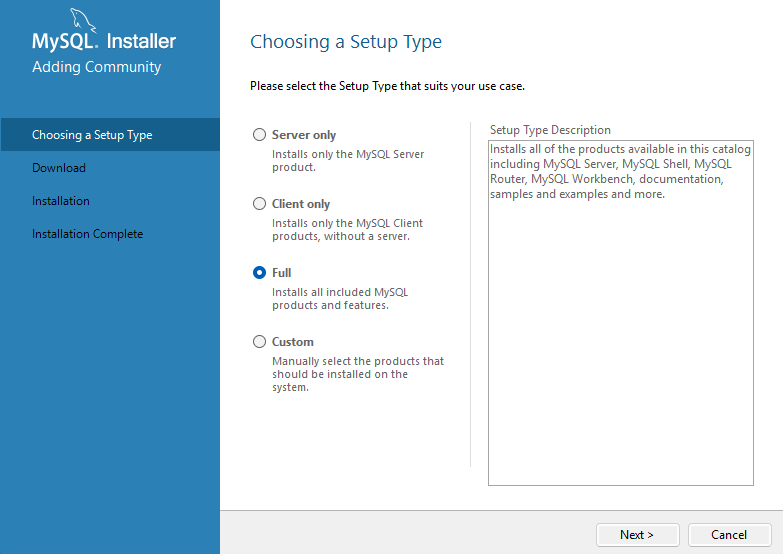
We only need to run it as a server but installing the client tools help with local database management. Pick the Setup Type based on your requirements.

In case you are not sure, go for Full installation. Follow the instructions on the installer.

Database import

If this is not a brand-new installation, here is the step to perform database export and import.

Export the database from the old installation if that has not happened yet and import the database into this new MySQL server.

If the old server is a Linux server with mysqldump available, run the following command to fetch the database with CREATE DATABASE.

mysqldump -u root -p –databases forms > forms.sql

RDM Forms

Installation

Fetch the latest version of RDM Forms for Windows. Upload the zip file to the web server and extract the files in C:\inetpub\wwwroot\forms.

Configuration

Most of the configuration is found in the config.php file. Open this file in your preferred text editor and set the relevant settings for this installation.

Depending on how we handle installations in the future, you might need to run Composer on this folder. To do so, run php composer.phar install to install the libraries required and/or fetch the latest version of the libraries.

Windows IIS

Installation

You can follow this Microsoft Learn page to install IIS on Windows Server 2012 or Windows 8.

Make sure to install CGI and FastCGI on the Select Features page for PHP to work correctly.

Configuration

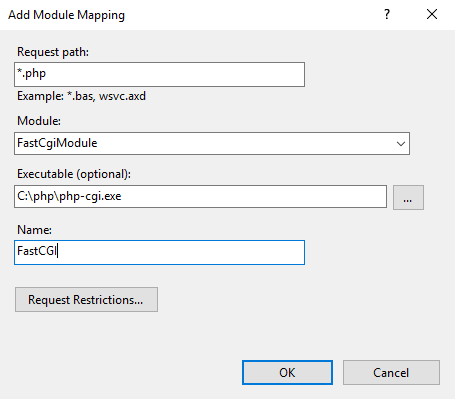
To set up PHP to work with IIS, we will follow the instructions from the Microsoft Learn page. Here is the fragment we care about.

  1. Open IIS Manager, select the hostname of your computer in the Connections panel, and then double-click Handler Mappings.
  2. In the Action panel, click Add Module Mapping.
  3. In Request path, type *.php.
  4. From the Module menu, select FastCgiModule.
  5. In the Executable box, type the full path to php-cgi.exe, for example C:\php\php-cgi.exe.
  6. In Name, type a name for the module mapping, for example FastCGI.
  7. Click OK.
  8. Select the hostname of your computer in the Connections panel, and double-click Default Document.
  9. In the Action panel, click Add. Type index.php in the Name box, and then click OK.
  10. Click Add again. Type default.php in the Name box, and then click OK.

URL Rewrite

RDM Forms uses the URL Rewrite module to route request to the correct PHP controller. This is the IIS equivalent of the Apache mod_rewrite module we use in Linux servers.

To install it, download the English x64 installer from the Official Microsoft IIS site and upload the file to the Windows server. Once on the server, double click on it to run the program and follow the prompts to install the module.

If the installer does not prompt you for it, I recommend restarting the Web Server inside IIS for changes to take place. Make sure you have a copy of the web.config file in the RDM Forms folder for the routing to work.

Testing installation

If all the steps were performed correctly, you should see RDM Forms load correctly when navigating to http://localhost/forms in the browser.

To check if there are missing libraries, navigate to the Setup page in http://localhost/forms/setup